Automate Your Daily Tasks with Python
Automate daily tasks with Python: organise folders, delete old files, rename photos and send reports, using safe dry-run scripts.
Think about the small jobs you repeat every day or every week: sorting the Downloads folder, renaming photos, deleting old files, copying a report to a backup folder, sending a status message to your team. Each takes only a few minutes, but together they eat hours every month, and tired humans make mistakes such as deleting the wrong file or forgetting a step. A short Python script does the same job in a second, the same way every time.
This guide is the first part of our Python automation series. You will learn which tasks are worth automating, the safety habits that stop a script from destroying your files, and then you will build four useful scripts step by step: a folder organiser, a cleaner for old files, a batch renamer and a daily report sender. Everything uses only the Python standard library, so there is nothing extra to install. At the end you will see how to run the scripts on a schedule, which is the second part of the series.
What is worth automating?
Not every task deserves a script. A good candidate has three properties: you do it often, the steps are always the same, and a mistake is annoying but not disastrous. Here are examples that readers commonly automate:
- Sorting downloaded files into folders by type: images, documents, installers, archives.
- Renaming a batch of files, for example photos from a phone, into a clean pattern with dates.
- Deleting temporary files and logs older than a few weeks.
- Making a dated backup copy of an important folder.
- Merging many CSV files from a daily export into one.
- Sending yourself a summary message, such as disk space left or the number of new files.
- Downloading a public report every morning and saving it in a folder.
Bad candidates are tasks that need human judgement every time, or tasks where a mistake could cost money or lose data without any way back. For those, build a script that prepares the work and lets you confirm the final step.
Five safety rules before you write any code
Scripts that touch files can do damage very quickly. A loop that moves or deletes files does it to hundreds of files in a blink. Follow these rules from the first script:
- Dry run first. Make your script print what it would do, and only act when you switch a flag. Read the printed list, then run it for real.
- Move, do not delete. Moving files to a "trash" folder gives you a way back. Delete for real only when you are sure.
- Never overwrite silently. If a file with the same name exists in the destination, choose a new name instead of replacing it.
- Test on a copy. Create a test folder with sample files and point the script at it, never at your only copy of something important.
- Log what happened. A log file tells you what the script did yesterday when something looks wrong today.
Use pathlib instead of string paths
Python's pathlib module treats paths as objects, which works the same on Windows, macOS and Linux and avoids many bugs with slashes and joins:
from pathlib import Path

downloads = Path.home() / "Downloads"       # the / operator joins path parts
print(downloads.exists())

for item in downloads.iterdir():            # list the content of a folder
    if item.is_file():
        print(item.name, item.suffix, item.stat().st_size)
The useful properties are name (file name), stem (name without extension), suffix (extension including the dot), parent (the folder) and stat() for the size and modification time.
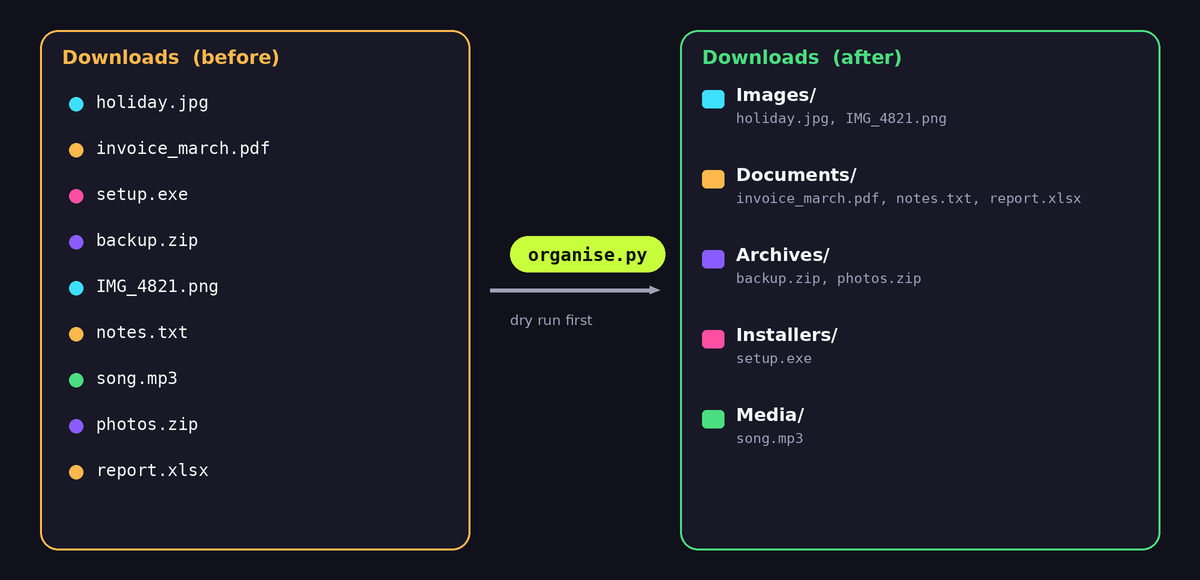
Script 1: Organise the Downloads folder
A folder that collects everything becomes a mess. This script sorts files into sub-folders by type, based on a table of extensions. It supports a dry run and never overwrites a file:
from pathlib import Path
import shutil

DRY_RUN = True      # change to False when the printed plan looks right

SOURCE = Path.home() / "Downloads"

CATEGORIES = {
    "Images":    {".jpg", ".jpeg", ".png", ".gif", ".webp"},
    "Documents": {".pdf", ".doc", ".docx", ".txt", ".xlsx", ".csv", ".pptx"},
    "Archives":  {".zip", ".rar", ".7z", ".tar", ".gz"},
    "Installers": {".exe", ".msi", ".dmg", ".apk"},
    "Media":     {".mp3", ".mp4", ".mkv", ".wav"},
}

def category_for(path):
    ext = path.suffix.lower()
    for name, extensions in CATEGORIES.items():
        if ext in extensions:
            return name
    return "Other"

def unique_target(target):
    """Return a path that does not exist yet by adding (1), (2)... to the name."""
    if not target.exists():
        return target
    counter = 1
    while True:
        candidate = target.with_name(f"{target.stem} ({counter}){target.suffix}")
        if not candidate.exists():
            return candidate
        counter += 1

def organise(source):
    moved = 0
    for item in source.iterdir():
        if not item.is_file() or item.name.startswith("."):
            continue
        destination_dir = source / category_for(item)
        target = unique_target(destination_dir / item.name)
        print(f"{item.name}  ->  {target.relative_to(source)}")
        if not DRY_RUN:
            destination_dir.mkdir(exist_ok=True)
            shutil.move(str(item), str(target))
        moved += 1
    print(f"{'Would move' if DRY_RUN else 'Moved'} {moved} files")

if __name__ == "__main__":
    organise(SOURCE)
Some details deserve a comment. The loop uses iterdir() on the top folder only, so files already inside sub-folders are left alone, and re-running the script is safe. Hidden files that start with a dot are skipped. The function unique_target protects against overwriting: a second report.pdf becomes report (1).pdf. Finally, a download that is still in progress may have a temporary extension such as .crdownload or .part, which lands in "Other" and is moved while the browser still writes to it. To avoid that, skip files modified in the last few minutes:
import time

def is_recent(path, minutes=10):
    return time.time() - path.stat().st_mtime < minutes * 60
Add or is_recent(item) to the continue condition, and the script leaves fresh downloads alone.
Script 2: Remove old files safely
Temporary exports, log files and screenshots pile up. This script finds files older than a number of days and moves them into a trash folder inside the same directory, so that you can still recover them. Another day you can empty the trash folder by hand.
from pathlib import Path
import shutil
import time

DRY_RUN = True
FOLDER = Path.home() / "Documents" / "exports"
MAX_AGE_DAYS = 30

def clean_old_files(folder, max_age_days):
    cutoff = time.time() - max_age_days * 86400
    trash = folder / "_trash"
    count = 0

    for item in folder.iterdir():
        if not item.is_file():
            continue
        if item.stat().st_mtime < cutoff:
            print("old:", item.name)
            if not DRY_RUN:
                trash.mkdir(exist_ok=True)
                shutil.move(str(item), str(trash / item.name))
            count += 1
    print(f"{count} old files {'found' if DRY_RUN else 'moved to _trash'}")

clean_old_files(FOLDER, MAX_AGE_DAYS)
The number 86400 is the count of seconds in a day. st_mtime is the last modification time. Be careful with the folder path: double-check it before you switch off the dry run. A typo that points the script at your whole Documents folder would be unpleasant, even with a trash folder.
Script 3: Rename a batch of files
Photos named IMG_4821.jpg tell you nothing. This script renames all images in a folder to a pattern with the date they were last modified and a counter, for example 2026-03-14_001.jpg:
from pathlib import Path
from datetime import datetime

DRY_RUN = True
FOLDER = Path.home() / "Pictures" / "trip"

def rename_photos(folder):
    files = sorted(
        (p for p in folder.iterdir() if p.suffix.lower() in {".jpg", ".jpeg", ".png"}),
        key=lambda p: p.stat().st_mtime,
    )
    for number, path in enumerate(files, start=1):
        day = datetime.fromtimestamp(path.stat().st_mtime).strftime("%Y-%m-%d")
        new_name = f"{day}_{number:03d}{path.suffix.lower()}"
        target = path.with_name(new_name)
        print(path.name, "->", new_name)
        if not DRY_RUN:
            path.rename(target)

rename_photos(FOLDER)
Look at f"{number:03d}": it pads the counter with zeros to three digits, so file names sort correctly (001, 002, ..., 010). If a file with the new name already exists, rename may fail or overwrite, depending on the system, so for repeated runs combine it with the unique_target helper from script 1, or include the original name in the new one.
Script 4: Send yourself a daily report
A script that works silently is hard to trust. Make it report to you. The simplest way is a Telegram message, which is covered in the third part of this series, building a Telegram bot that reports to you. If you prefer email, the standard library can send it through SMTP. This example uses a Gmail account with an app password, which you create in your Google account security settings. Never use your normal password in a script:
import os
import smtplib
from email.message import EmailMessage

def send_email(subject, body):
    msg = EmailMessage()
    msg["From"] = os.environ["MAIL_USER"]
    msg["To"] = os.environ["MAIL_TO"]
    msg["Subject"] = subject
    msg.set_content(body)

    with smtplib.SMTP_SSL("smtp.gmail.com", 465, timeout=30) as smtp:
        smtp.login(os.environ["MAIL_USER"], os.environ["MAIL_APP_PASSWORD"])
        smtp.send_message(msg)

if __name__ == "__main__":
    send_email("Daily report", "Organised 14 files, removed 3 old exports.")
Notice that the credentials come from environment variables and not from the code. Never write passwords or tokens in a script that you copy around or upload to GitHub. On Linux and macOS you set a variable with export MAIL_USER=... in the shell, and on Windows with setx MAIL_USER "...". For a project, a .env file with the python-dotenv package is convenient, as long as the file is excluded from version control.
Add logging so you can trust the script
print is fine while you test, but a scheduled script needs a log file. The logging module writes timestamps and levels for you:
import logging
from pathlib import Path

LOG_FILE = Path(__file__).resolve().parent / "automation.log"

logging.basicConfig(
    filename=LOG_FILE,
    level=logging.INFO,
    format="%(asctime)s %(levelname)s %(message)s",
    encoding="utf-8",
)

logging.info("Started organiser")
try:
    organise(SOURCE)
except Exception:
    logging.exception("Organiser failed")   # writes the full traceback
    raise
logging.info("Finished")
Build the log path from __file__, as shown, so that the file lands next to the script no matter which folder the script is started from. That matters as soon as you schedule it, because schedulers start programs in unexpected folders.
Combine the pieces into one project
A tidy structure keeps small scripts maintainable:
config.pyholds folders, extensions and flags such asDRY_RUN.tasks.pycontains the functions:organise,clean_old_files,rename_photos.run_daily.pyimports the tasks, logs the start and end, and sends the report..envholds secrets and is listed in.gitignore.
The runner collects the numbers each task returns, builds one summary and sends it. Returning a count from each function, instead of only printing it, makes this easy. When something fails, the try/except shown above sends you the traceback instead of leaving you wondering why nothing happened.
Run it automatically
A script you have to start by hand only saves half of the time. To run the daily script every morning without thinking about it, use the scheduler of your system. On Linux and macOS this is cron, on Windows it is Task Scheduler, and on a free cloud service you can use a small web app with a pinger. The next part of the series explains cron and Render in detail. If a scheduled job silently does nothing, this troubleshooting guide for cron jobs lists the seven usual causes. And when your automation downloads data from the internet, add timeouts and retries as shown in our requests guide.
Ideas to extend your automation
- Watch a folder and process new files immediately with the
watchdogpackage. - Convert images to a smaller size with the
Pillowpackage before uploading them. - Merge a month of CSV files into one with
pandas.concat, and write it withutf-8-sigso Excel shows all characters correctly, as explained in this CSV encoding article. - Collect public data on a schedule using the techniques from our BeautifulSoup tutorial.
- Zip an important folder with
shutil.make_archiveand keep the last seven backups.
Frequently asked questions
Do I need to be an advanced programmer for this?
No. The scripts above use basic Python: loops, conditions, functions and a few standard modules. If you can read them, you can adapt them. Start with the dry-run versions and change one thing at a time.
Is it safe to run these scripts on my real folders?
It is safe when you follow the rules: dry run first, move instead of delete, test on a copy and check the paths. The scripts here never overwrite existing files, but always keep a backup of anything important.
Will the scripts work on Windows, macOS and Linux?
Yes, because pathlib and shutil hide the differences. Only the way you set environment variables and schedule the script differs between systems.
How do I stop a script that is running wild?
Press Ctrl and C in the terminal. That is another reason to move files to a trash folder instead of deleting them: an interrupted script leaves everything recoverable.
What should I automate next?
Look at your own week. Whatever you do twice, with the same steps, is a candidate. Write down the steps in plain words first. If you can describe them clearly, the script nearly writes itself.
Final thoughts
Automation is not about clever code, it is about removing small repeated chores safely. Choose boring tasks, make the script show its plan before it acts, keep a way back for every change, log the result and let the script tell you when it is done. Build one small script this week, and run it for a month. Once you see how much time it saves, you will start spotting the next task to hand over to Python.