Schedule Python Scripts with Cron and Render
Schedule Python scripts with cron, a free Render web service or GitHub Actions, with working code, honest limits and security tips.
A script that you must start by hand is only half automated. The real value arrives when it runs by itself: every morning at eight, every hour, every Monday. Your report is waiting when you wake up, your files are sorted before you sit down, and a failed job tells you about itself. This guide, the second part of our Python automation series, shows three practical ways to schedule a Python script: cron on your own Linux or macOS machine or a VPS, a free Render web service that is triggered from outside, and a GitHub Actions workflow as a no-server alternative. You will learn when to pick each one, with complete code and the limits that nobody mentions in short tutorials.
If you have not written an automation script yet, start with the first part, automating daily tasks with Python, and come back.
First, prepare the script for unattended running
A script that runs by itself has no human watching. Before you schedule anything, make sure it behaves well alone:
- Exit with a clear result. Let exceptions end the script with a non-zero exit code, so that the scheduler knows it failed.
- Use timeouts on every network call. Without them one stuck request blocks the job forever. See our guide to timeouts and retries.
- Log to a file, with timestamps, so you can read what happened at 3 a.m.
- Do not depend on the current folder. Build paths from the location of the script file.
- Read secrets from environment variables, not from the code.
- Keep it idempotent. If the job runs twice by accident, it should not send two reports or duplicate rows.
A minimal skeleton that follows these rules:
import logging
import sys
from pathlib import Path

BASE = Path(__file__).resolve().parent
logging.basicConfig(
    filename=BASE / "job.log",
    level=logging.INFO,
    format="%(asctime)s %(levelname)s %(message)s",
)

def main():
    logging.info("job started")
    # ... your work here ...
    logging.info("job finished")

if __name__ == "__main__":
    try:
        main()
    except Exception:
        logging.exception("job failed")
        sys.exit(1)
Option 1: cron on Linux, macOS or a VPS
Cron is the classic scheduler. It is free, built in, and runs on any always-on machine: a small VPS, a Raspberry Pi, an old laptop that stays at home. You edit your personal schedule with crontab -e. Each line has five time fields followed by the command:
# minute  hour  day-of-month  month  day-of-week  command
  0       8     *             *      *            /usr/bin/python3 /home/me/clean.py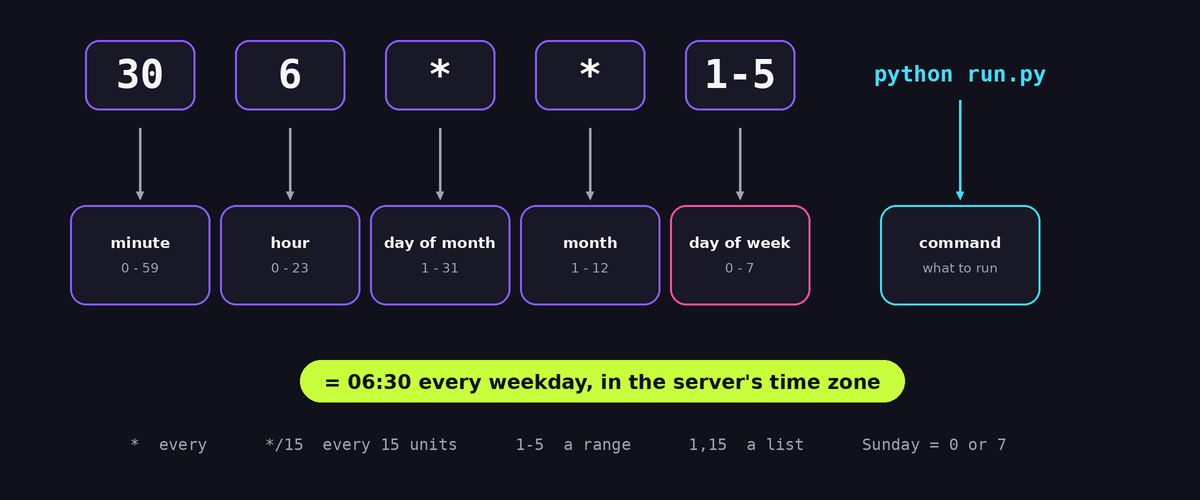
This line runs the script every day at 08:00. The five fields mean:
- minute from 0 to 59,
- hour from 0 to 23,
- day of month from 1 to 31,
- month from 1 to 12,
- day of week from 0 to 7 (both 0 and 7 mean Sunday, 1 is Monday).
An asterisk means "every". A slash sets a step and a comma lists values. Examples that you will use again and again:
*/15 * * * *every 15 minutes.0 * * * *at the start of every hour.30 6 * * 1-5at 06:30 on weekdays, Monday to Friday.0 9 1 * *at 09:00 on the first day of each month.0 0 * * 0at midnight every Sunday.@rebootonce, when the machine starts.
A good production line also writes output to a log and uses full paths:
0 8 * * * cd /home/me/automation && /home/me/automation/venv/bin/python run.py >> cron.log 2>&1Check the installed schedule with crontab -l. Cron uses the time zone of the machine, and many servers use UTC, so an hour that you set for 08:00 may be 13:30 in India. Run date on the server to see its time. Cron has traps that cost beginners hours: a minimal PATH, the wrong working directory, missing environment variables and a percent sign that cron treats as a newline. We list the fixes in our troubleshooting guide for cron jobs that do not run.
On Windows there is no cron. The equivalent is Task Scheduler. Create a basic task, choose a trigger such as daily at a time, set the action to "Start a program", enter the full path of python.exe as the program, the path of your script as the argument and the script's folder in the "Start in" field.
Cron has one weakness: the machine must be on. A laptop that sleeps at 08:00 misses the job, and cron does not run it later.
Option 2: a free Render web service plus an outside scheduler
Not everyone owns a server. Render offers a free tier for web services that runs a Flask app without a credit card for small projects. The catch is that a free web service goes to sleep after a period without traffic and wakes up when a request arrives. The wake-up can take around half a minute. A sleeping service cannot run its own cron, so the schedule must come from outside: an online scheduler or an uptime monitor calls a URL of your app at the times you choose. The request wakes the service, the service runs the job.
The structure is simple. Your Flask app has two routes: /health, which does nothing but answer, and /run, which starts the job and is protected by a secret token so that strangers cannot trigger it:
import hmac
import os
import threading
import logging
from flask import Flask, request, jsonify

app = Flask(__name__)
logging.basicConfig(level=logging.INFO)

TOKEN = os.environ.get("RUN_TOKEN", "")
lock = threading.Lock()

def job():
    # put your real work here; it must be safe to run more than once
    logging.info("job started")
    # ...
    logging.info("job finished")

def run_in_background():
    if not lock.acquire(blocking=False):
        logging.info("job already running, skipping")
        return
    try:
        job()
    except Exception:
        logging.exception("job failed")
    finally:
        lock.release()

@app.get("/health")
def health():
    return {"ok": True}

@app.post("/run")
def run():
    given = request.headers.get("X-Run-Token", "")
    if not TOKEN or not hmac.compare_digest(given, TOKEN):
        return jsonify({"error": "forbidden"}), 403
    threading.Thread(target=run_in_background, daemon=True).start()
    return jsonify({"started": True}), 202
Let us look at the design decisions. The route accepts POST and a secret header, so a crawler or a link preview cannot trigger it by visiting a URL. hmac.compare_digest compares the token in constant time, which is the careful way to compare secrets. The job runs in a background thread, and the route answers immediately with status 202, because schedulers wait only a few seconds for an answer and would report a timeout for a long job. The lock prevents two runs from overlapping if the scheduler calls twice. And the token comes from an environment variable that you set in the Render dashboard, never from the code.
The requirements.txt needs flask and gunicorn. The start command on Render is:
gunicorn app:app --bind 0.0.0.0:$PORT --workers 1 --threads 4Use one worker, so that the lock works and your free instance does not run out of memory. If the deploy fails with a port message, this guide to the "No open ports detected" error explains why. For the outside schedule, use any service that can call a URL with a chosen method, interval and headers. Many free schedulers and uptime monitors offer this. Configure one call to /health every few minutes if you want to keep the service awake, and a second call, a POST to /run with the X-Run-Token header, at the time you want the job to run. Check the features of the service you choose, because free plans differ in whether they allow custom headers and POST.
Limits of the free Render approach
Be honest about the limits, so they do not surprise you later:
- Cold starts. The first request after idle time is slow. Your scheduler must allow a long timeout, or call
/healtha minute before/run. - Temporary disk. Files written by your app disappear when the service restarts or redeploys. Store results in a database, a cloud sheet or send them by message. Never use the local disk as permanent storage.
- Monthly hours and resources. Free plans have limited instance hours, memory and CPU. Check the current terms on the Render website, because they change.
- Not for heavy jobs. A job that needs lots of memory or runs for an hour does not belong on a free web service.
- Single point of failure. If the outside scheduler stops, nothing runs. Use a second monitor that alerts you.
Option 3: GitHub Actions on a schedule
If your code is already on GitHub, a scheduled workflow is often the easiest free option, with no server at all. GitHub starts a fresh virtual machine at the times you choose, runs your script and shuts it down. Create the file .github/workflows/daily.yml in your repository:
name: daily-job

on:
  schedule:
    - cron: "30 2 * * *"      # 02:30 UTC every day = 08:00 in India
  workflow_dispatch:           # also allows a manual "Run workflow" button

jobs:
  run:
    runs-on: ubuntu-latest
    steps:
      - uses: actions/checkout@v4
      - uses: actions/setup-python@v5
        with:
          python-version: "3.12"
      - run: pip install -r requirements.txt
      - run: python run.py
        env:
          BOT_TOKEN: ${{ secrets.BOT_TOKEN }}
          CHAT_ID: ${{ secrets.CHAT_ID }}
Secrets such as tokens go into the repository settings under Secrets and variables, and appear in the workflow as ${{ secrets.NAME }}. They are never committed to the code. Know these characteristics before you rely on it:
- The schedule uses UTC. Convert your local time.
- Scheduled runs can be delayed, especially at busy times such as the start of an hour. Do not use it for jobs that must start at an exact second. Choosing a minute like 17 or 43 instead of 0 reduces queueing.
- Each run starts from scratch, with no files from the previous run. Persist results elsewhere.
- In public repositories, GitHub may disable scheduled workflows after a long period without repository activity, and you can re-enable them. Check the current rules in the GitHub documentation.
- Usage limits exist for free accounts, especially for private repositories.
Which option should you choose?
- You own an always-on machine, and the job needs local files: cron.
- You have no server, the job is light and needs to be reachable by URL: Render free web service with an outside scheduler.
- Your code lives on GitHub, the job is a batch task and you do not need exact timing: GitHub Actions.
- Your job is critical, long or heavy: use a paid scheduler or a proper job service, and add monitoring.
Monitoring: know when a job fails
A schedule without monitoring is a gamble. The simplest alert is a message to your phone when the job finishes or fails. In the third part of this series we build exactly that: a Telegram bot that reports to you. Send one message on success with a short summary and one message on failure with the error text. If you run a bot that polls Telegram on the same service, also read about the 409 Conflict error, because overlapping deploys can create two copies.
Common mistakes
- Setting the schedule in local time on a server that uses UTC.
- Forgetting that the free Render service sleeps, and using a short timeout in the scheduler.
- Exposing a
/runURL without a token, so anyone can start your job. - Saving results to the local disk of a cloud service.
- Letting runs overlap, so that two copies write the same data.
- Putting secrets in the repository.
- Never checking whether the job still runs. Add a message or a log check.
Frequently asked questions
Can I run a Python script every minute?
Yes, with cron (* * * * *) or a scheduler that supports one-minute intervals. Make sure the script finishes in less than a minute, or use a lock so that runs do not overlap. For free cloud tools the shortest allowed interval may be longer.
Does cron run if my computer is off?
No. Cron runs only while the machine is on, and it does not run missed jobs later. For catch-up behaviour use anacron or systemd timers, or choose a cloud option.
Is it safe to expose a /run endpoint?
It is acceptable when it needs a long random secret token, accepts only POST, answers quickly and does nothing dangerous with user input. Never accept file paths or commands from the request.
How do I test a schedule without waiting a day?
Temporarily set it to run every minute, watch the log, and set the real time afterwards. With GitHub Actions use the manual workflow_dispatch button.
What if the job takes longer than the interval?
Use a lock, as in the Flask example, or flock with cron, so that a new run is skipped while the previous one is still working.
Final thoughts
Scheduling is about reliability. Prepare the script to run alone, pick the scheduler that fits your situation, protect the trigger with a secret, plan for cold starts and temporary disks, and make the job tell you when it succeeds or fails. With that in place, your Python script stops being a tool you remember to run and becomes a service that quietly does its work every day.